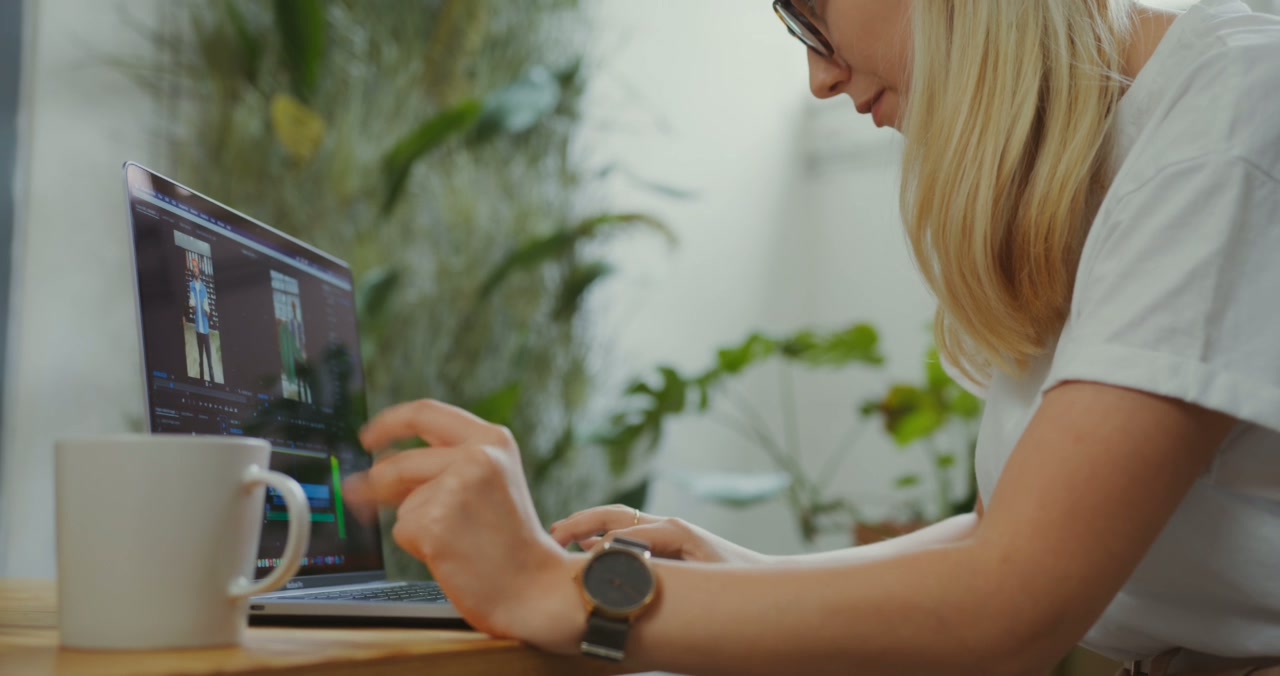
Back up your way.
Create a backup that follows your destination’s folders and filenames, or keep the selected files together with their original names. Matching names are numbered when needed.
Explore the screenshot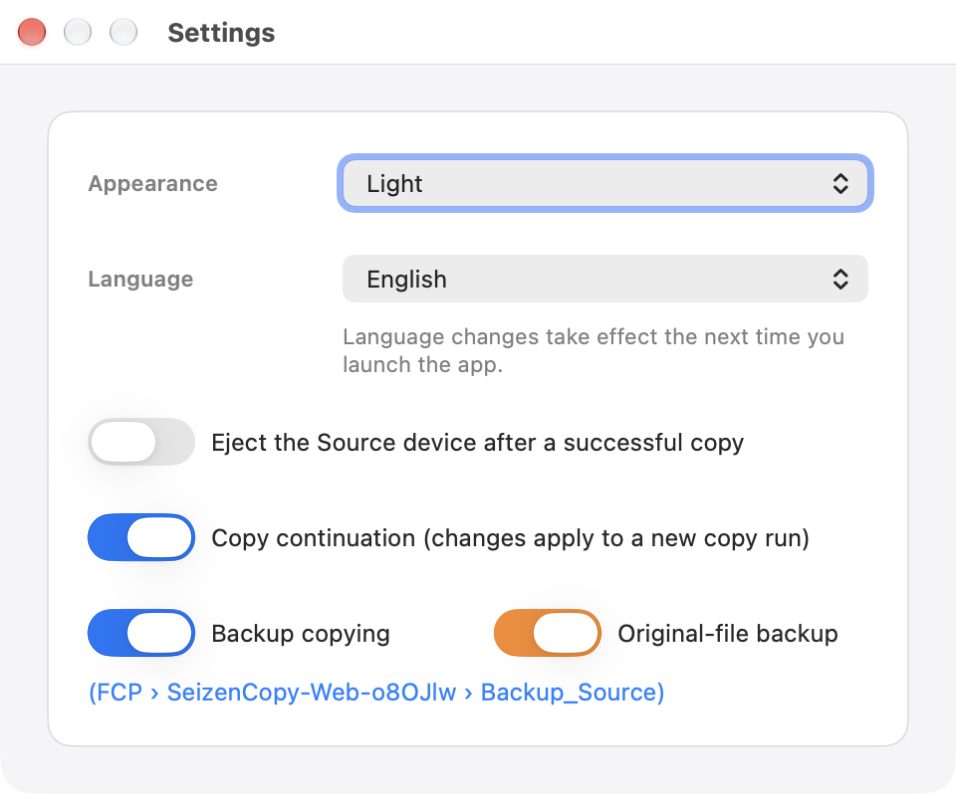

Why SeizenCopy
Seizen is inspired by the Japanese 整然 — things arranged clearly and in order. Your files should arrive in folders that make sense to you, with names you recognize — ready for the work you actually want to do.
Files together
Original names
Copy from a camera card to the Mac using SeizenCopy, with an additional backup copy on NAS storage.
SeizenCopy
Less manual work. A day of shooting can leave you with hundreds of files to sort and rename. Choose your folder structure and naming rules before copying, and SeizenCopy applies them throughout the transfer.
Create a backup that follows your destination’s folders and filenames, or keep the selected files together with their original names. Matching names are numbered when needed.
Explore the screenshot
Prepare your transfer, connect your MacBook to power and let SeizenCopy work with the lid closed. Available on supported MacBook models.
Explore the screenshot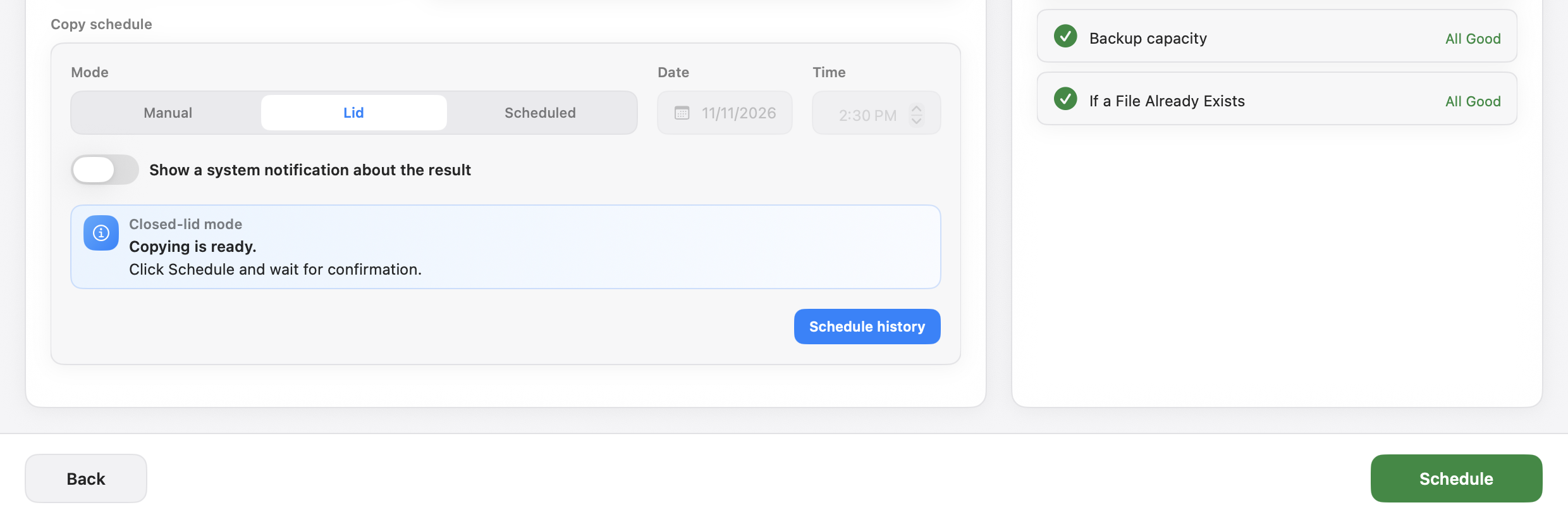
Choose a date and time for your transfer. SeizenCopy can run it even with the app closed — just keep your Mac awake and your storage connected.
Explore the screenshot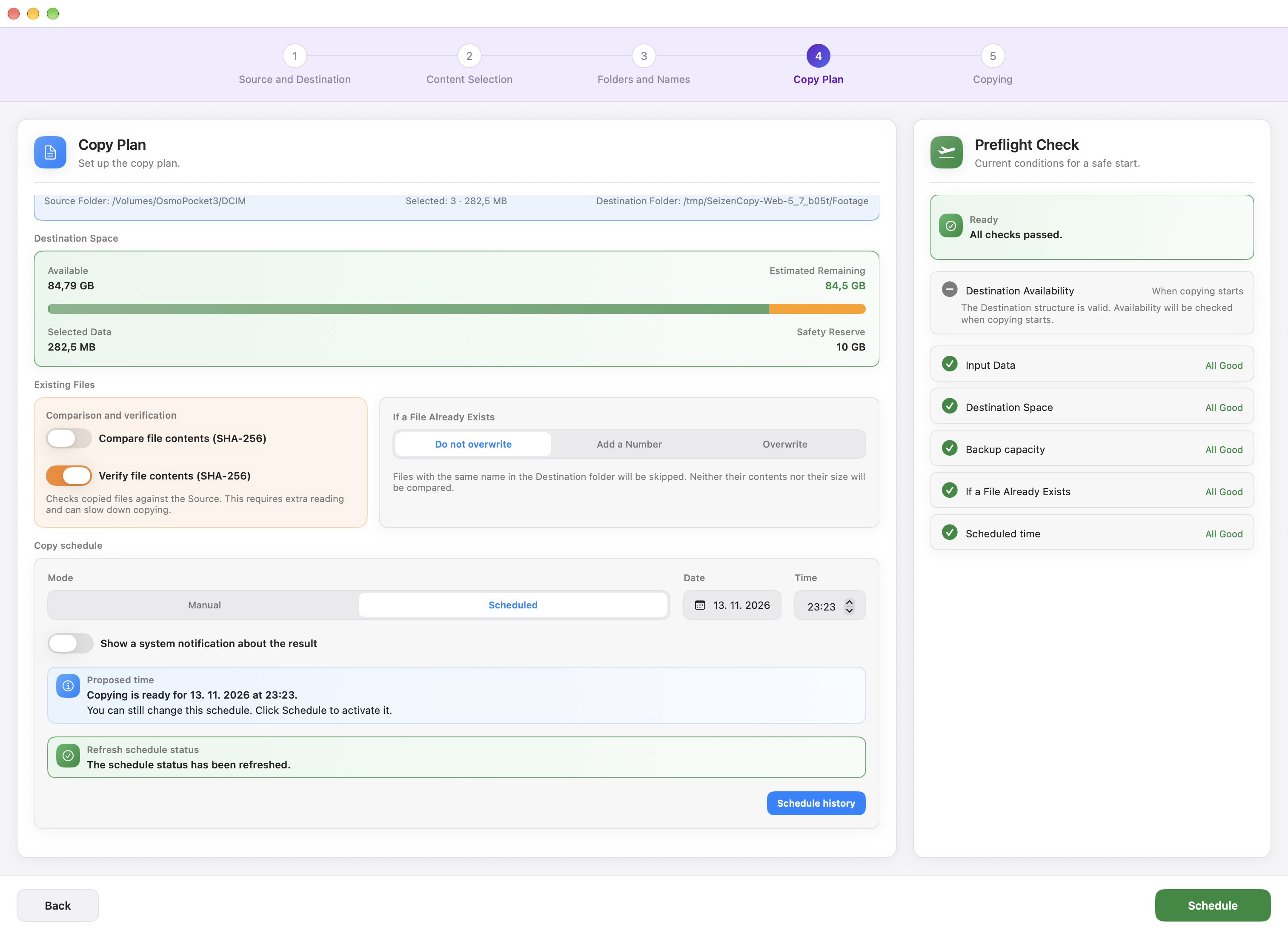
Add new files to an existing copy series while keeping its folder structure, naming rules and continuing file numbering.
Explore the screenshot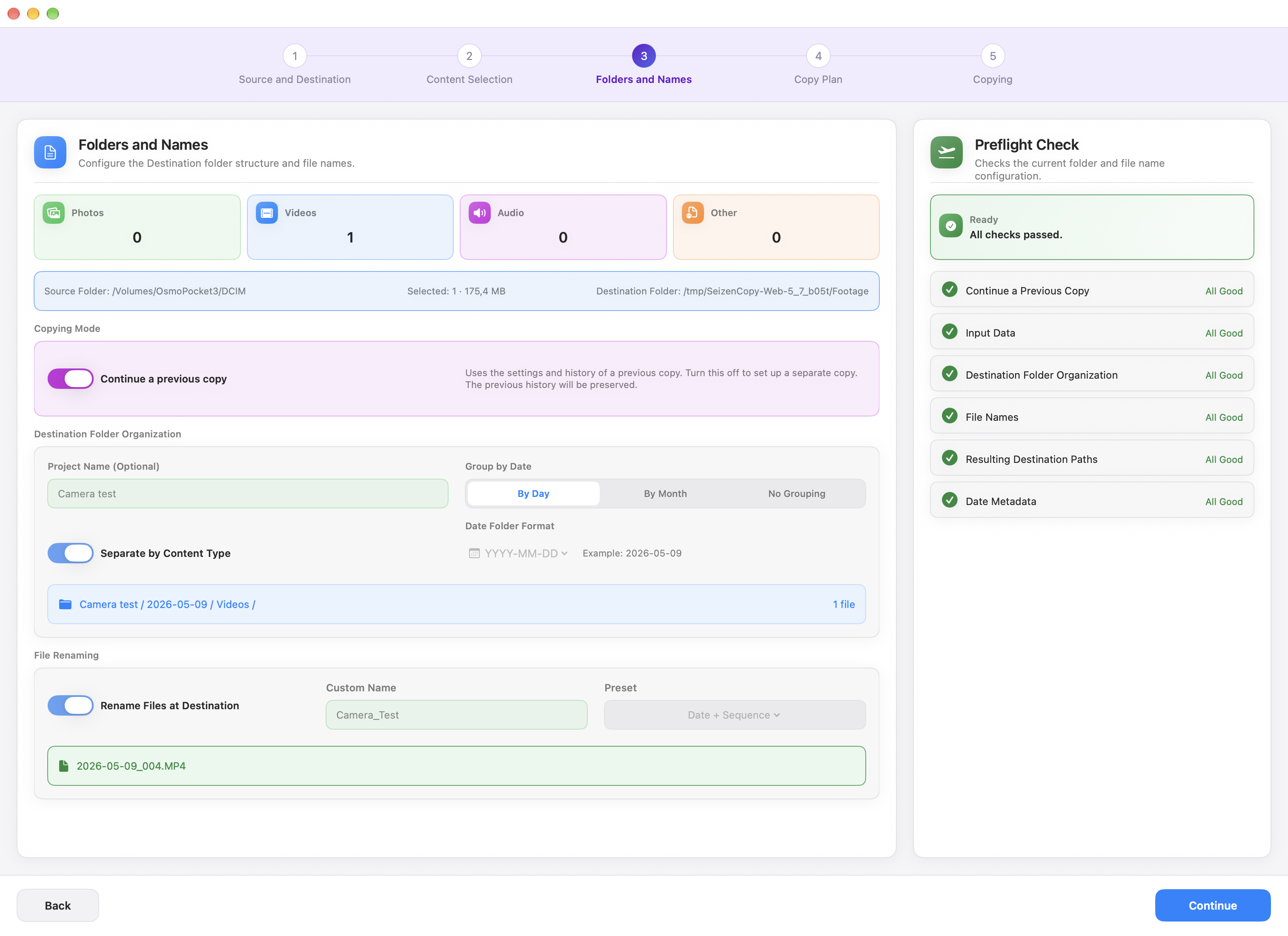
Turn on SHA-256 verification to compare copied files with their originals. See separate verification results for your destination and backup.
Explore the screenshot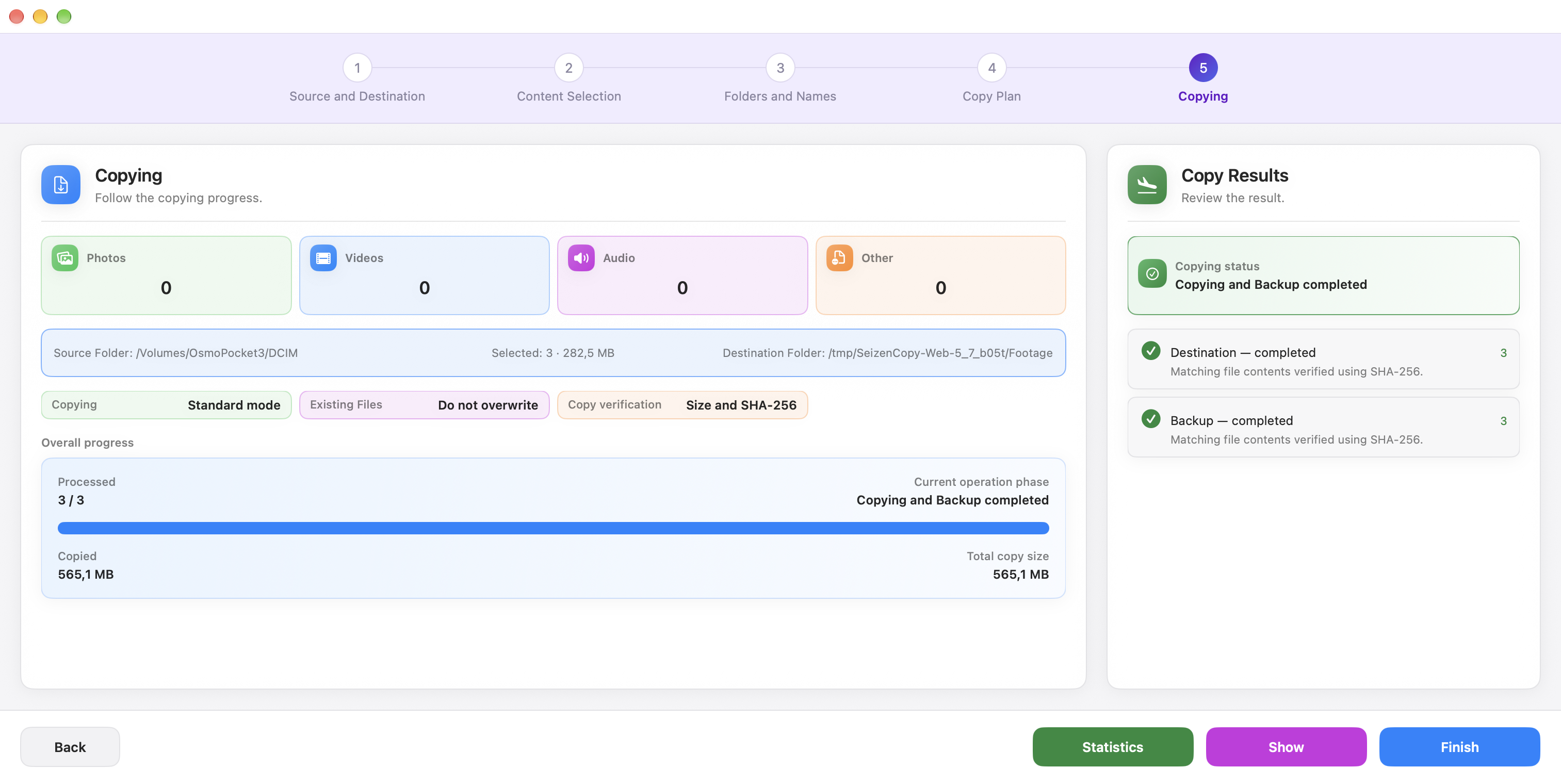
Group files into project folders, sort them by type or date, and apply your naming rules during copying. Your source files stay unchanged.
Explore the screenshot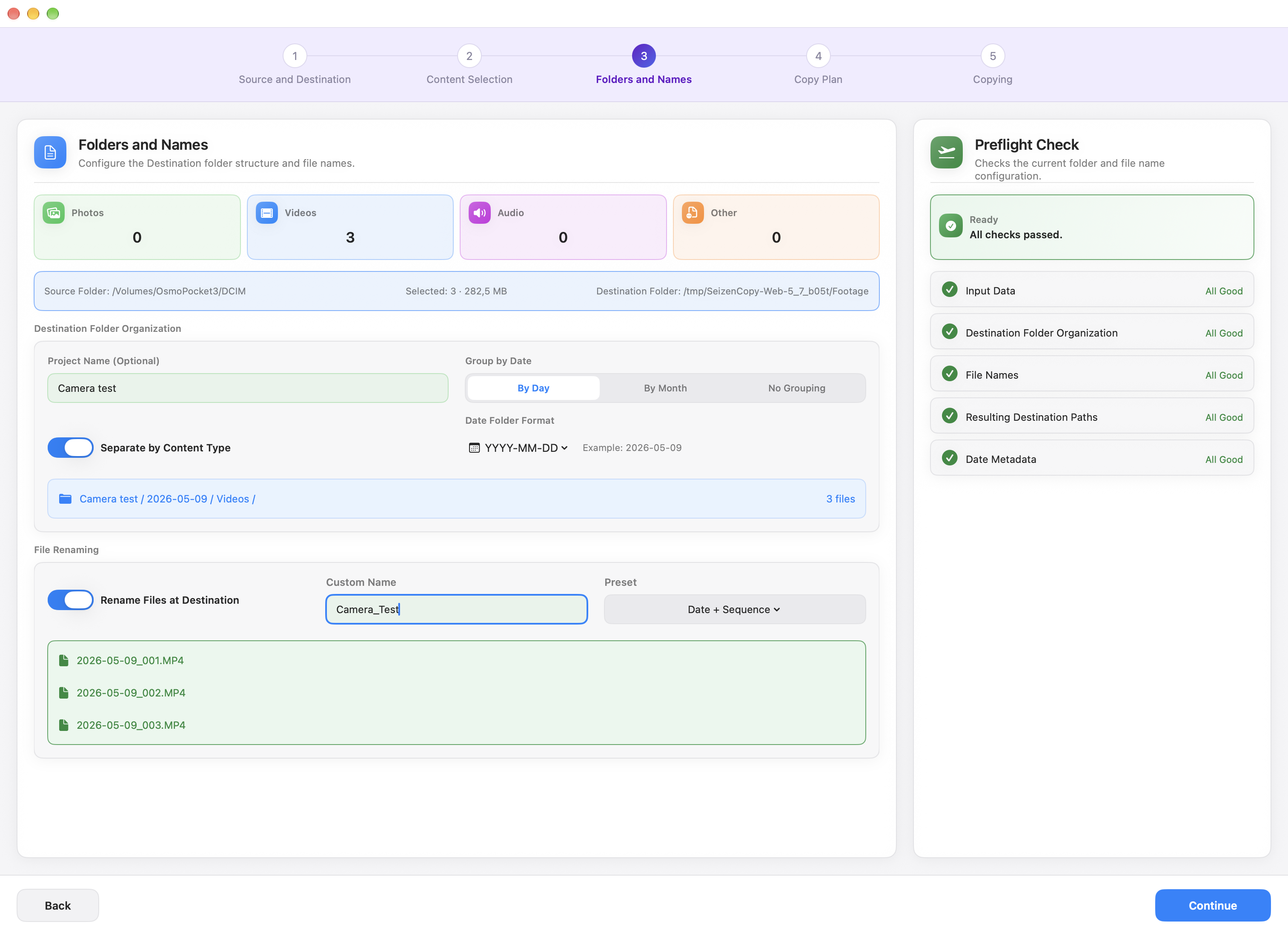
SeizenCopy is available in light and dark appearances, with the same calm and clear workflow in either mode.
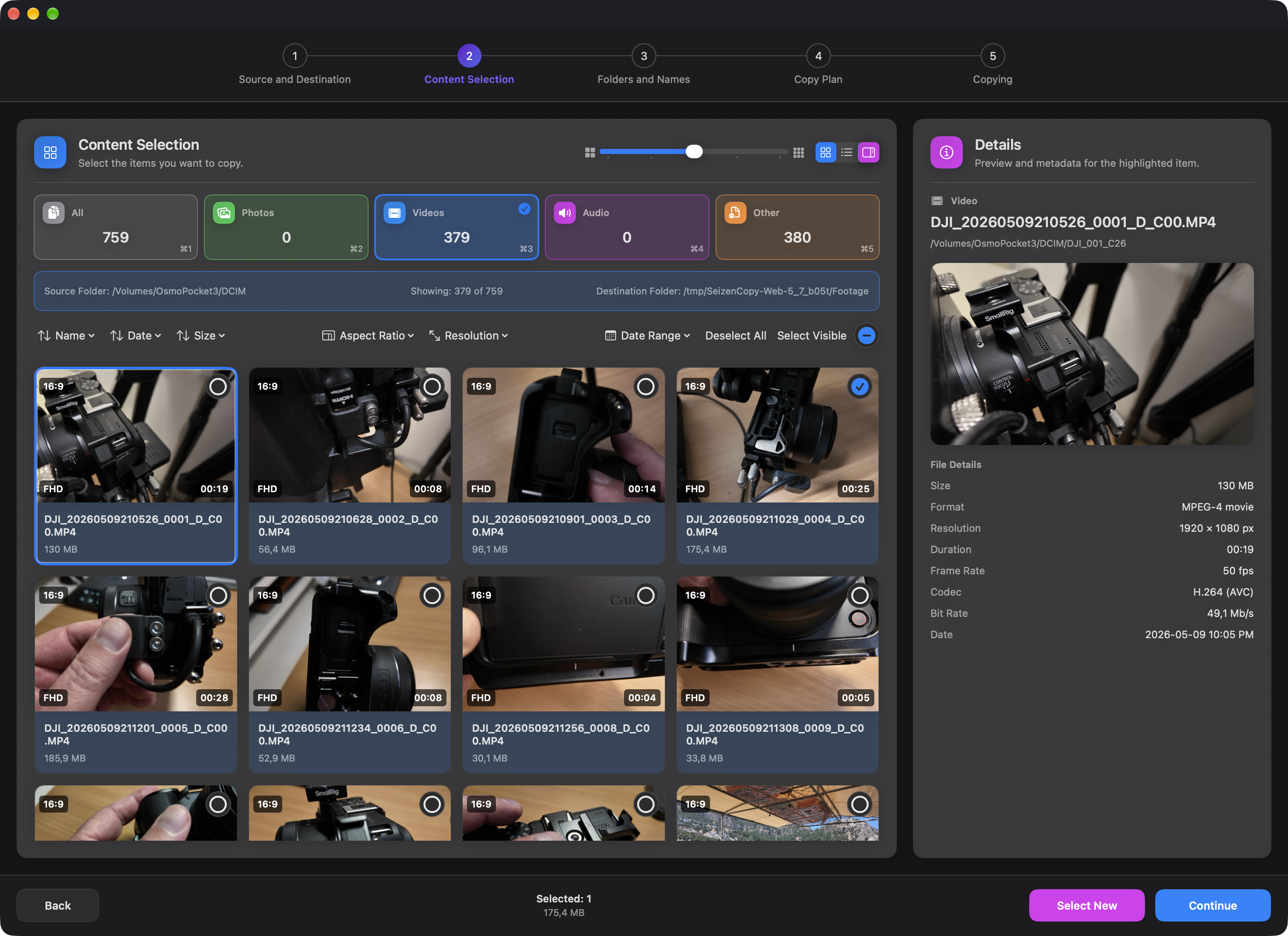
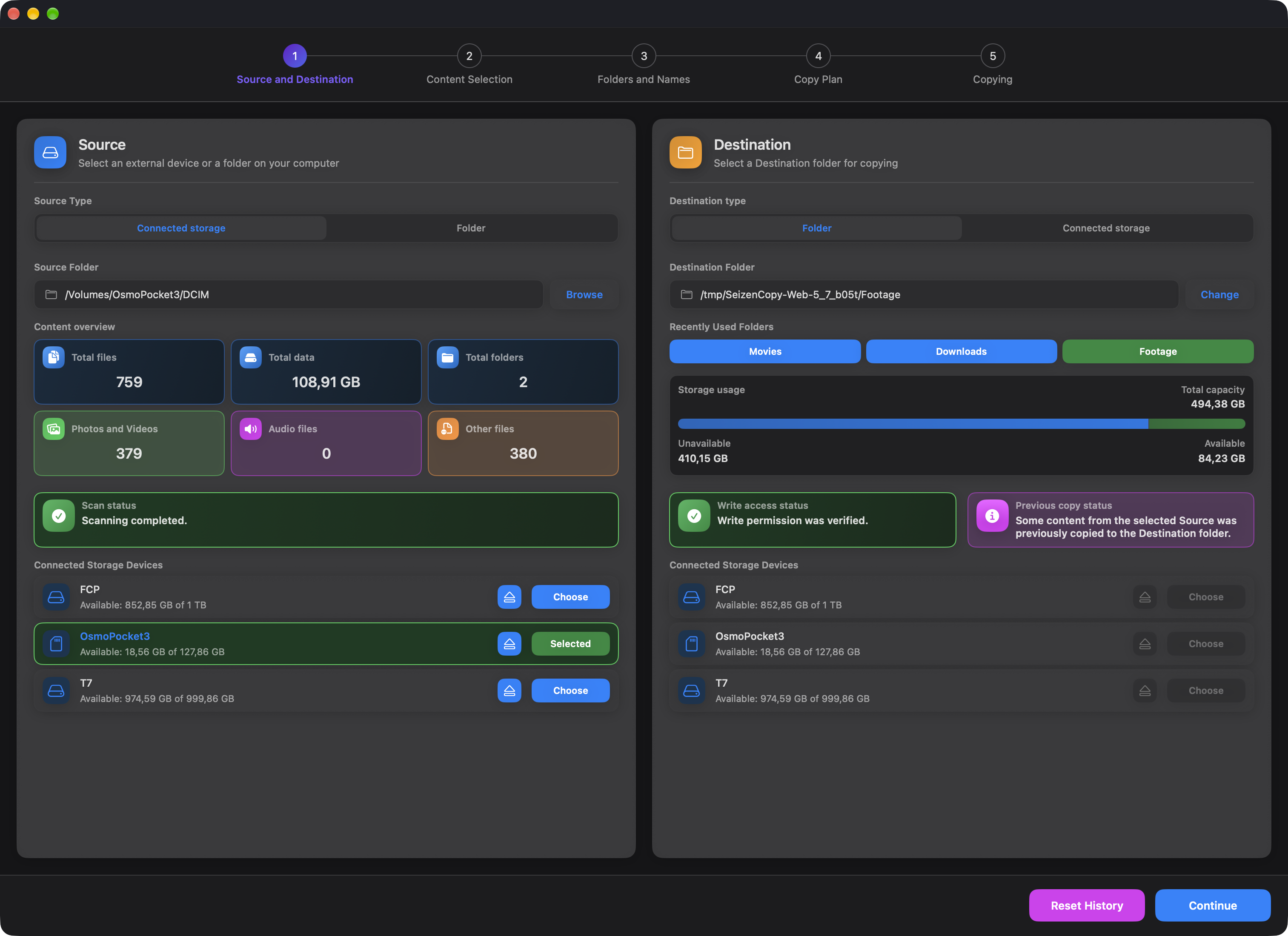
Multiple languages
SeizenCopy supports multiple interface languages.*
The same copy workflow stays easy to follow from source to result.
* Currently, only English and Czech are supported. More languages will follow.
App walkthrough
Choose where your files are and where you want them copied. Check the available space before moving on.
View full screenshot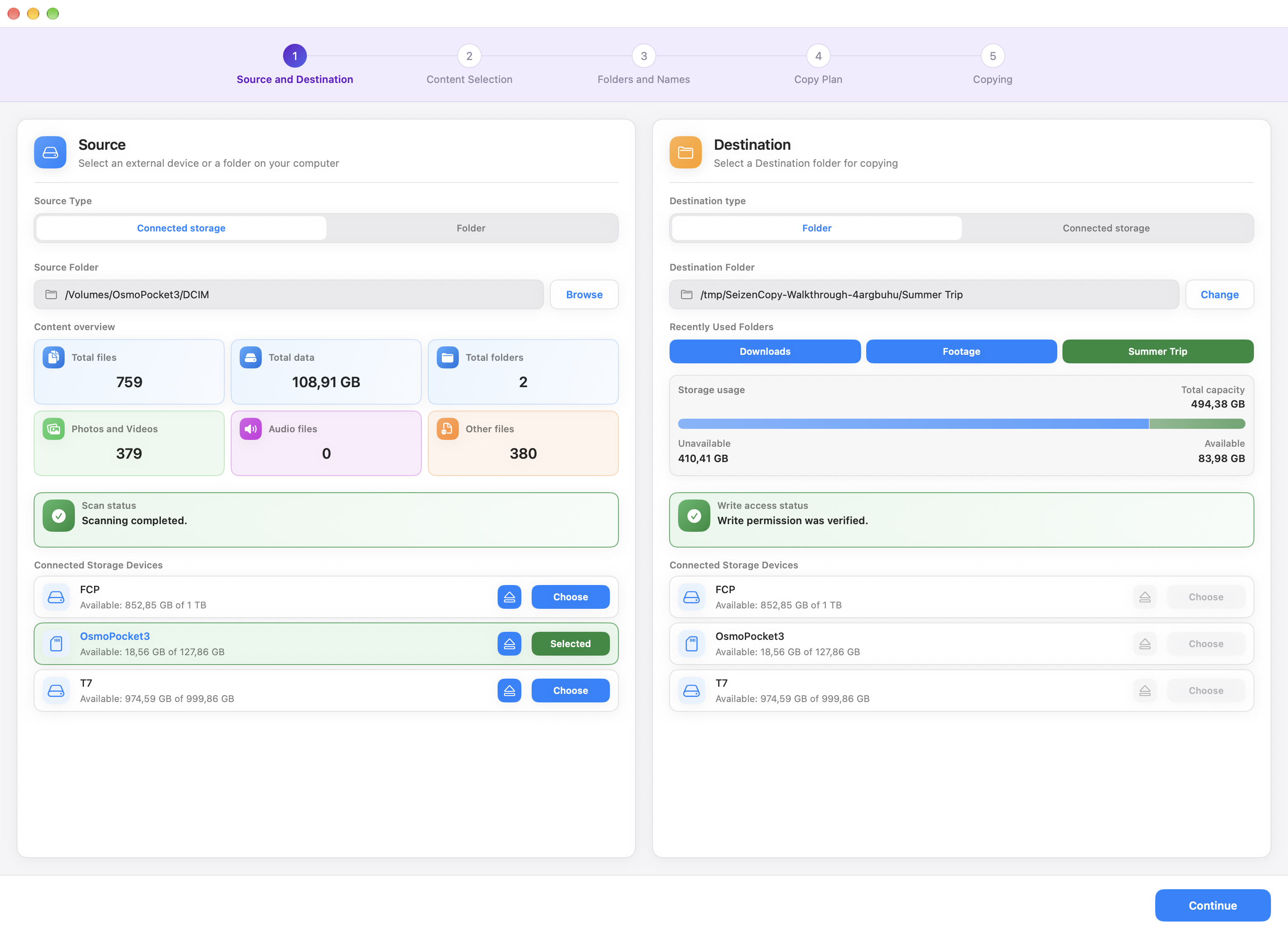
Browse your photos, videos and other files. Use previews and filters to select everything you need.
View full screenshot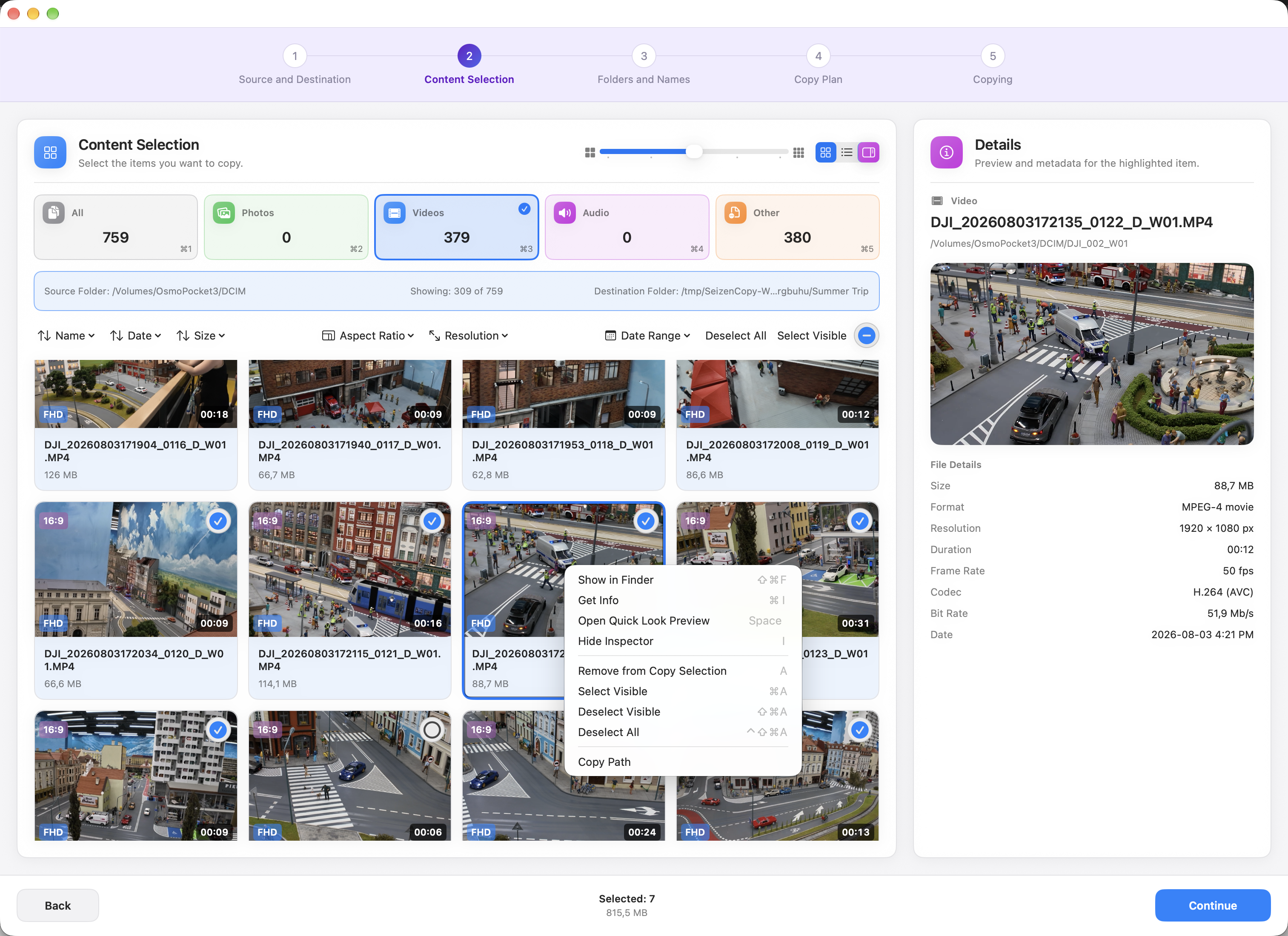
Choose how to organize and name your copies. Preview the folder structure and filenames before the transfer.
View full screenshot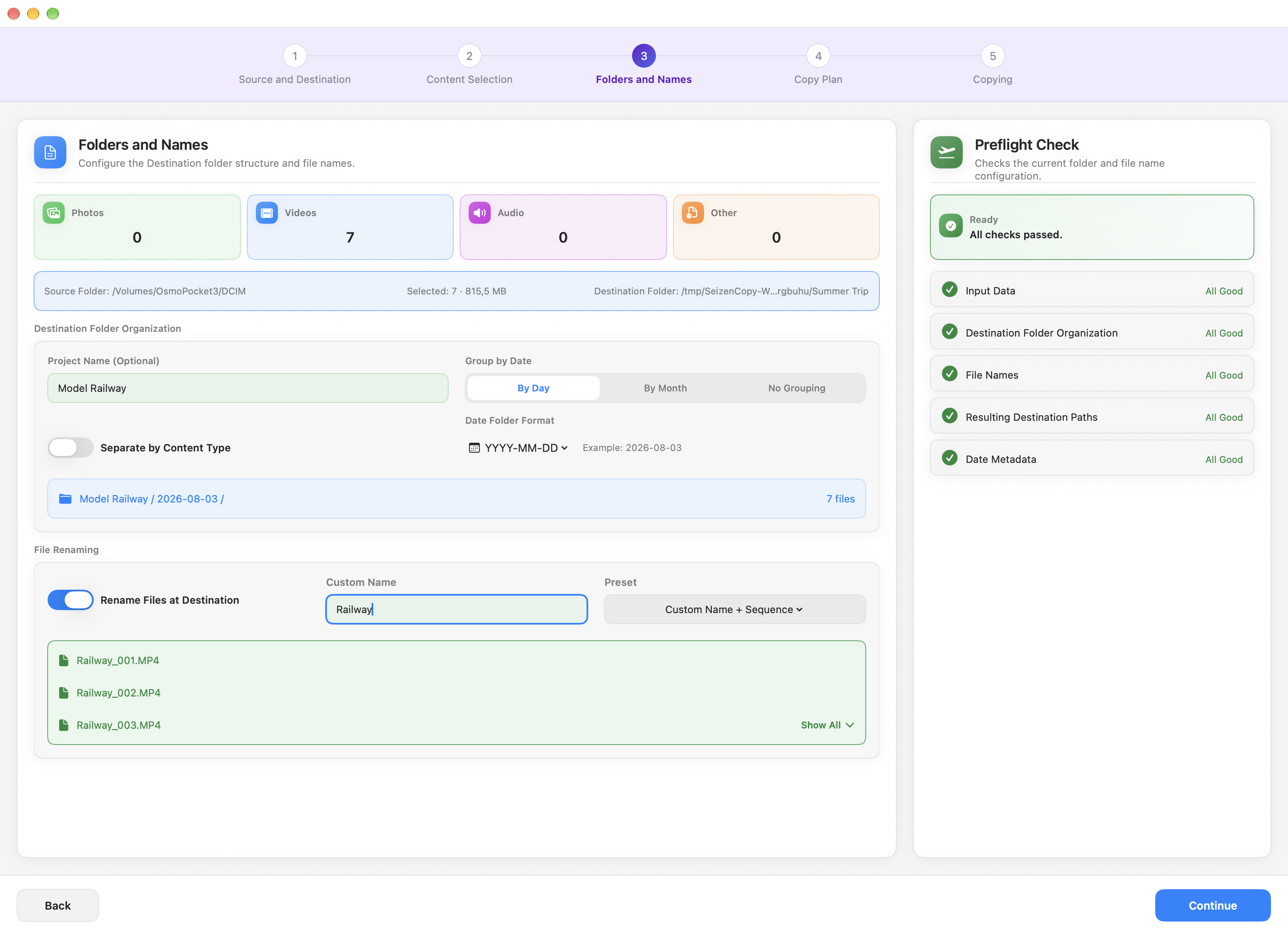
Review the plan and choose whether to verify file contents. Decide when copying should begin: manually, at a scheduled time or with Lid mode on a supported MacBook.
View full screenshot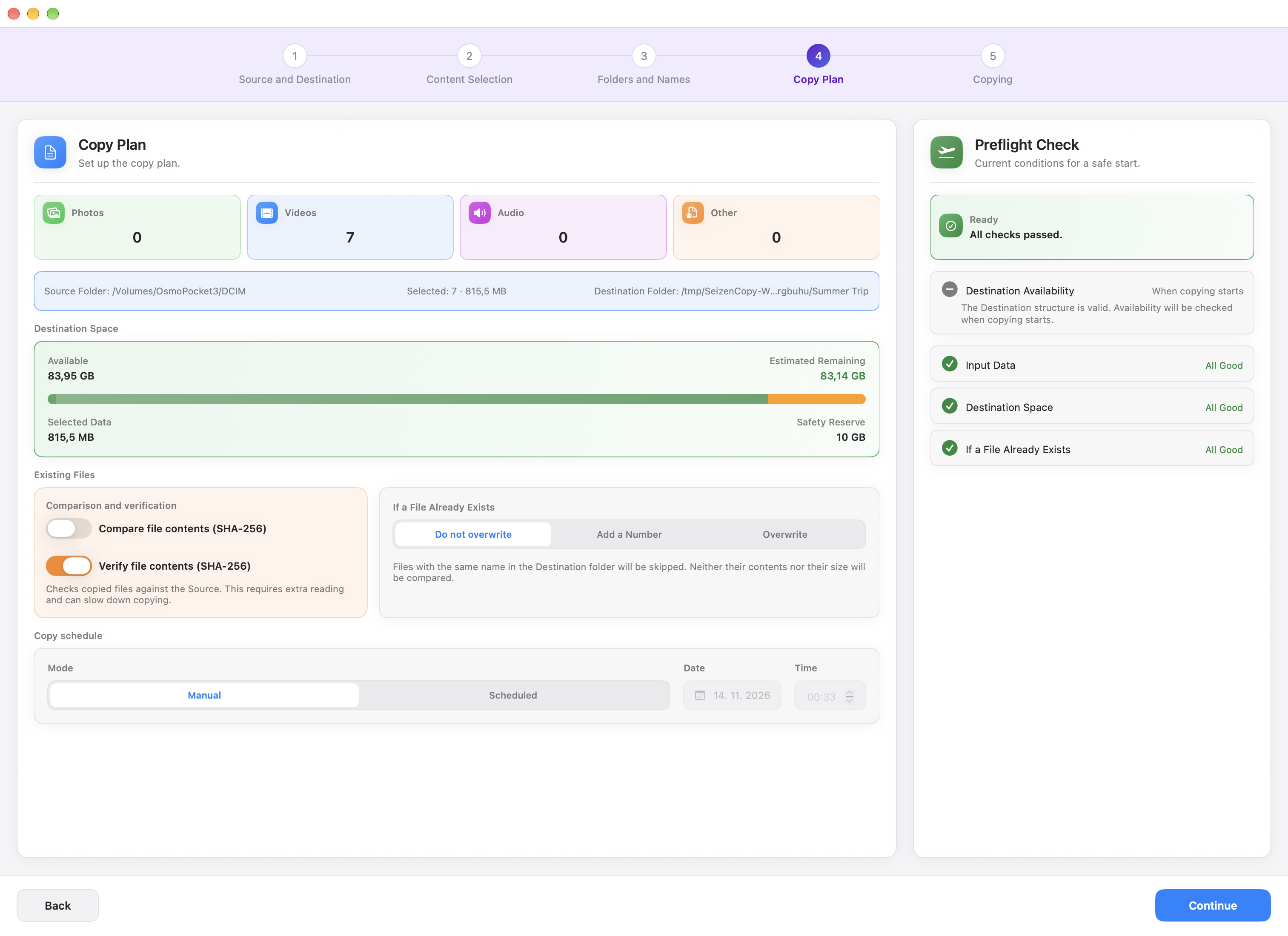
Follow the transfer, then review the results. Open Statistics to see what happened to each file, including any backup and verification results.
View full screenshot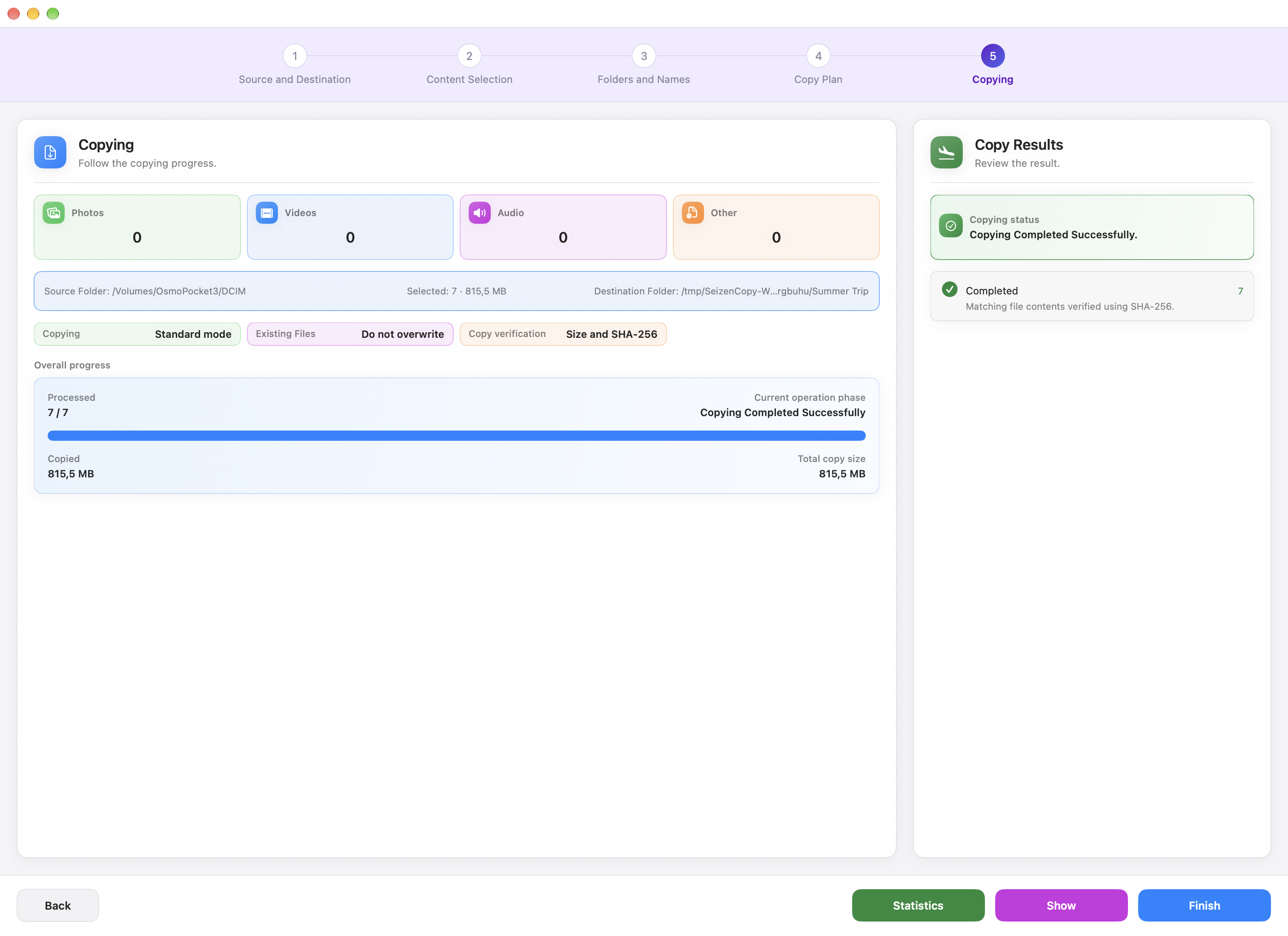
Who it's for
What will you use it for? A client project. A video for your channel. Photos from a weekend away. Whether you create for a living or for yourself, SeizenCopy helps you organize your videos and photos for whatever comes next.
NOW IN BETA
Get SeizenCopy for Mac through TestFlight and help us improve it with your feedback
FAQ
SeizenCopy requires macOS 14 or later and supports Macs with Apple Silicon or Intel processors. Lid mode is available only on supported MacBook models.
Yes. SeizenCopy also handles audio, documents, archives and other files. You can select all files in your chosen source or just the ones you need.
Yes. You can copy between camera cards, local folders, external drives and NAS locations accessible from your Mac. The available copying options depend on the destination’s storage type and file system.
No. SeizenCopy reads your source files without changing them. Folder organization and renaming are applied to the copies in your destination.
Yes. Your backup can follow the destination’s folders and filenames, or keep the selected files together with their original names, adding numbers when names conflict. SeizenCopy must be able to verify that the backup storage is separate from both the source and destination. A different folder or partition on the same physical drive is not enough.
The copy plan lets you choose how to handle matching filenames: keep existing files, add copies alongside them with numbered names, or overwrite them. Available choices depend on the destination, with all three options supported on local APFS and HFS+ destinations.
Yes. With Copy continuation enabled, you can add new files from the same source to the same destination while keeping the folder structure, naming rules and continuing file numbering. This is supported on local APFS and HFS+ destinations.
Enable optional SHA-256 verification in the copy plan to check that newly copied files match their originals. Copies in the destination and backup have separate verification results, which you can review in Statistics.
On a supported MacBook, prepare your copy plan and activate Lid mode before closing the lid. Keep the MacBook connected to power and the required storage connected. Simply closing the lid does not activate this mode.
Completed copies are kept. For eligible copies on local APFS and HFS+ destinations, SeizenCopy can offer recovery using the available source and saved copy history. Recovery copies an incomplete file again from the beginning.